What is hiberfill.sys?
Hiberfill.sys is a file creates by the system when the computer goes into hibernation mode. Hiberfill.sys is use to store current memory of the PC on to the hard disk when windows goes down to hibernation mode and use when the windows turn back on.
How to turn on hibernation mode?
- Host machine: Windows 7 service-pack 1
Method 1:
- Search the command prompt and right click on the command prompt and select “Run as administrator”

- At the command prompt type “powercfg.exe /hibernate on” and press enter.
- Exit from the command prompt.

Method 2:
- Press the “Windows + R”, then open the “Run” dialog box and type “regedit”
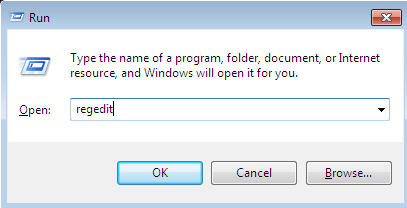
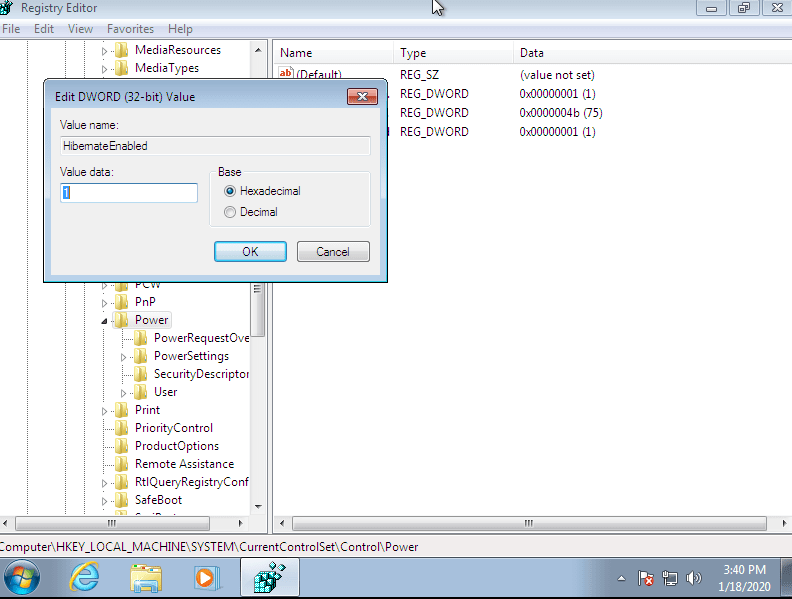
- In registry window, navigate to the “HKEY_LOCAL_MACHINE\SYSTEM\CurrentControlSet\Control\Power”
- In the right pane of the power key, double click on the “HibernateEnabled”.
- To enable hibernate type “1” in the data value box and to disable type “0” in the data value box and click “OK”
After, hibernate mode on, it appears besides the “Shut down” button.

After enable the hibernate mode, open some applications and hibernate the machine, then turn back on.
Verify hiberfil.sys has been created
After hibernate the machine, the system creates hiberfil.sys file in the root C drive. By default, hiberfil.sys file is not visible in file explorer, because of that we should have to change the settings.
- Open the Control Panel and go to the Appearance and Personalization, then Folder Options.
- Switch to the View option and enable the “Show hidden files, folders and drives” under “Hidden files and folders”.
- Untick the option “Hide protected operating system files”, then it appears system files if File Explorer which were hidden.

- Then hiberfil.sys file appear in the root C drive

Extract hiberfil.sys file
- Tool used to extract the file: AccessData FTK imager version 3.1.2.0
- Open the AccessData FTK imager and go to the option “File”
- Select “Add All Attached Devices”

- Then the all attached devices add to the list on the top of the left corner.
- Go to the “C/ NONAME [NTFS] / root”, then it is displayed hiberfil.sys file.

Right click on the “hiberfil.sys” and select “Export Files…”

- Extraction of hibersfil.sys file is completed.

Analyse hiberfil.sys file
- Used OS for analyse: Ubuntu 16.04
- Tool: Volatility
Volatility is open source software programs use for analysing RAM in 32-bit and 64-bit systems. It supports for Linux, Windows, Mac and Android systems. Volatility is based on the Python. It can be run on Windows, Linux and Mac systems. Volatility can analyse raw dumps, crash dumps, VMware dumps and may others.
- Before analysis, clarify Windows 7 OS details. To do that, go to right click on the “My Computer” and select “Properties”

- Copy hiberfil.sys to the ubuntu machine.

- Converting hiberfil.sys file into a raw file.
Hiberfil.sys is a compressed memory file. Before analyse, we should have to decompress into a raw memory dump. Actually, using volatility, we can work with hiberfil.sys. but process is very slow because it will have to decompress every time a different plugin is used. Therefore, we get raw image of the hiberfil.sys using “imagecopy” plugin and it will speed up the process.

- Verify creation of “hiberfil.raw”

- Using “pslist” plugin, we can look running processes when the system goes into hibernation mode.


References:
 dpasidu7